Keeping your computer free from dust is essential for maintaining performance, preventing overheating, and extending the lifespan of components. At Bitmaster Helsinki, we provide professional laptop cleaning services and PC dust cleaning for both desktops and laptops.

Why Dust Cleaning Is Important
- Prevents CPU, GPU, and component overheating
- Improves system performance and stability
- Reduces fan noise and power consumption
- Extends the lifespan of the computer
Step-by-Step Dust Cleaning Process
Follow these steps for effective computer dust cleaning, whether for your home PC or laptop:
- Prepare the workspace: Wear a dust mask and work in a well-ventilated area. Turn off and unplug the computer.
- Open the case or panels: Remove side or front panels to access dust filters, fans, and components.
- Remove dust from filters: Use compressed air to blow away dust from filters and vents, ensuring proper airflow.
- Clean internal components: Use compressed air, a blower, or a lint-free microfiber cloth with isopropyl alcohol for stubborn dust. Remove components if needed, placing them on a non-conductive surface.
- Power supply and hard-to-reach areas: Use a can of pressurized air with a long straw for deep cleaning inside the PSU or tight spaces.
- Reassemble and manage cables: Proper cable management improves airflow and reduces future dust buildup.


Maintenance Recommendations
- Light dusting every 3–6 months
- Deep cleaning every 6–12 months
- Follow manufacturer-specific cleaning instructions for your model
Regular dust cleaning ensures your computer stays cool, quiet, and fast. It also helps prevent damage to sensitive components, keeping your PC or laptop in optimal condition.
Bitmaster Helsinki offers laptop cleaning services and PC deep cleaning with careful, thorough attention. We handle desktops, laptops, and components safely and efficiently.
Call: +358 9 174 746 Contact us for a dust cleaningSometimes, Windows can unexpectedly shut down or restart due to a serious error, and you might see a message saying it's to prevent damage to your computer. These errors, known as blue screen errors, can happen because of hardware or software issues. If you recently added a new device to your computer before encountering the blue screen error, here's what you can do: turn off your computer, remove the device, and try restarting your computer again.
If you're having trouble restarting Windows, you can try starting your computer in safe mode. There are other troubleshooting steps you can take too, like updating Windows with the latest updates, seeking help from other sources, or restoring Windows to an earlier point in time. If none of these steps fix the blue screen error, you can use the Blue Screen of Death (BSOD) Troubleshooter.
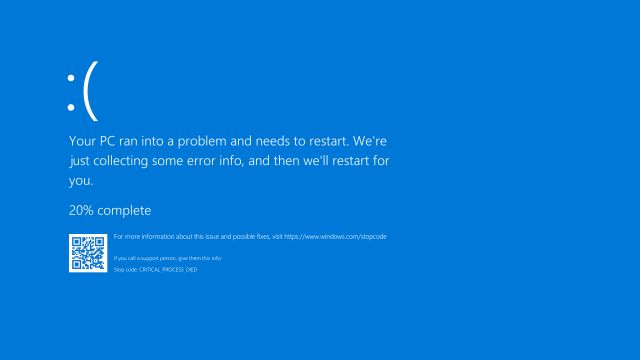
Now, let's talk about the Blue Screen of Death (BSOD) error in Windows operating systems. It can occur in different situations, like after a specific update or due to hardware or software issues. The error might be caused by things like a system or program file that fails to open, physical problems with your hard drive or other components, dust blocking ventilation, or a faulty device driver. When you see the blue screen, there will be a stop code displayed, which can help with troubleshooting.
To find out what's causing the error, you can try a few things. Perform a Google search using the stop code, restart your computer, or access the troubleshooting menu. Additionally, if your computer freezes, you can use a program called WhySoSlow to address the issue.
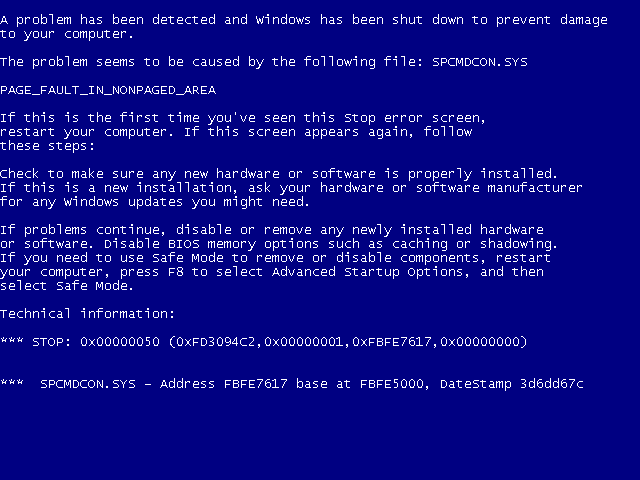
Remember, the Blue Screen of Death (BSOD) is a system error message that shows up briefly and causes your computer to restart. It's important to understand the error message and gather relevant information from it. You can use tools like BlueScreenView to analyze the error and find helpful links to Microsoft's guides for troubleshooting blue screen errors. We also provide tips for diagnosing and resolving the issue, such as common causes like application errors, hardware problems, and Windows installation issues.
]]>
Loose connection: Check to make sure that the keyboard is properly connected to the computer or device it's supposed to be working with. If it's a wired keyboard, make sure the USB cable is securely plugged in. If it's a wireless keyboard, check the batteries and the connection between the keyboard and the receiver.
Driver issues: Sometimes a keyboard may stop working because of driver issues. Try updating the keyboard driver through the device manager or reinstalling the driver.
Physical damage: If the keyboard has been physically damaged, such as from a spill or a drop, it may stop working. In this case, you may need to replace the keyboard.
Software issues: Sometimes a keyboard may stop working because of software issues, such as a conflicting program or a virus. Try running a virus scan or closing any conflicting programs.

Faulty keyboard: If none of the above solutions work, it's possible that the keyboard itself is faulty. In this case, you may need to replace the keyboard or have it repaired.
In general, if your keyboard is not working, try the following steps:
Check the connection.
Restart your computer or device.
Check for driver updates or reinstall the driver.
Check for physical damage.
Run a virus scan or close conflicting programs.
Try using a different keyboard or have the keyboard repaired.
]]>
Computer won't start from the power button
If your computer doesn't start from the power button, the first thing you can try is to check that the computer is plugged into a power outlet and that all cables are properly connected. If this doesn't help, try restarting the computer by holding down the power button for about 10 seconds.
Laptop won't start
If your laptop won't start, try unplugging the power cord and removing the battery. Hold down the power button for about 10 seconds. Then, connect the power cord and try starting the computer again.
Forced restart of the computer
If your computer doesn't start up normally and freezes, you can try a forced restart. This can be done by pressing and holding down the power button for about 10 seconds, which will shut down the computer. Then, you can start the computer again and hope that it works normally.
Computer starts up with a black screen
If your computer starts up, but the screen remains black, you can try various solutions. First, check that the screen is properly connected to the computer. If this doesn't help, try starting the computer in Safe Mode by pressing the F8 key when starting the computer.
Desktop computer won't start
If your desktop computer won't start, you can try checking that all cables are properly connected. You can also try starting the computer in Safe Mode. If the computer starts up in Safe Mode, you can try removing installed programs that may be causing problems.
Acer computer won't start
If your Acer computer won't start, try restarting the computer by holding down the power button for about 10 seconds. Also, check that all cables and devices are properly connected to the computer.
Computer won't start at all
If your computer won't start at all, there is likely a more serious problem. In this case, you can try starting the computer in Safe Mode and checking that all cables and devices are properly connected. If this doesn't help, it may be necessary to contact technical support.
HP computer won't start in Windows 10
If your HP computer won't start in Windows 10, you can try starting the computer in Safe Mode or from the recovery drive. You can also try updating the computer's drivers and software.

Summary:
Startup problems with a computer can be frustrating and difficult to resolve. Here are some different reasons why a computer may not start up, and we provide tips on how you can troubleshoot the problem. Always remember to check all cables and devices before trying any other solution. If the problem persists, don't hesitate to seek help from us!
Viruses are malicious software that spread through computers and can cause various damages. They can delete or modify data, steal personal information, or take control of the computer. Malware can also slow down the computer and make it unstable.

Fortunately, there are many ways to combat viruses and malware. Firstly, it's important to keep the computer's security programs up to date. Security programs such as antivirus software and firewalls help protect the computer from viruses and malware. It's also important to be careful with downloads and emails, as malware can often hide in suspicious downloads and email attachments.
However, if the computer is already infected, you can try to remove the virus or malware by using specialized programs such as antivirus software or malware removal tools. These programs can be downloaded for free online and help identify and remove malware from your computer.
Sometimes, viruses and malware can be so severe that cleaning the computer can be too difficult or even impossible. In this case, it may be necessary to seek professional help. We can help effectively and safely remove viruses and malware from your computer.
In summary, viruses and malware are serious threats to your computer and its data. Therefore, it's important to keep the computer's security programs up to date and be cautious with downloads and emails. If your computer is already infected, you can try to remove the virus or malware using specialized programs or seek professional help.
Bitlocker recovery key Troubleshooting Computer Problems]]>