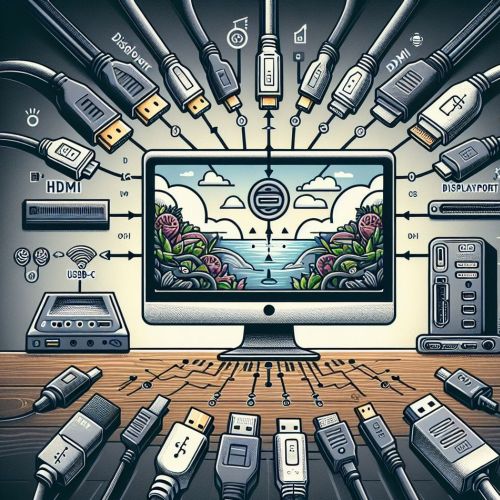
HDMI cable: HDMI is a common and user-friendly option that supports both audio and video in the same cable. Most modern monitors and computers have HDMI ports.
DisplayPort cable: DisplayPort is another common option that provides high resolution and audio transport in the same cable. It is often used in modern computers and monitors.
USB-C cable: If your computer has a USB-C port, you can use it to connect the monitor, especially if the monitor also has a USB-C input. USB-C also supports video and audio transmission.
DVI cable: Although DVI connectors are less common in modern devices, they can still be useful for older monitors or computers that support this connector.
Choose the cable based on the types of connectors available on your monitor and computer, as well as the required quality of the image and sound.
HOW DO THESE DISPLAY CONNECTORS DIFFER FROM EACH OTHER?
If you've ever confused VGA and DVI connectors or been puzzled by their uses, you're not alone. In this guide, we explain how different connectors work and what they're used for, so you can choose the right connector for your needs.
ARE MONITORS AND COMPUTERS COMPATIBLE WITH EACH OTHER?
Before choosing a display connector, check if your monitor has a connector that matches your computer's graphics card. It is recommended that the monitor supports at least 1920x1080 Full HD resolution, which can be found in the technical specifications of the monitor.
DisplayPort vs. HDMI: Comparison
DisplayPort and HDMI are both excellent display connector options, but they have their own strengths and weaknesses, and one is not generally better than the other. Here's a comparison between the two:
Resolution and refresh rate:
DisplayPort: DisplayPort supports higher resolutions and refresh rates compared to HDMI. For example, DisplayPort 1.4 and newer versions enable 8K resolution and high refresh rates.
HDMI: The latest HDMI standards, such as HDMI 2.1, also support high resolutions and refresh rates, but may not be as high as DisplayPort.
Connecting multiple monitors:
DisplayPort: DisplayPort allows daisy-chaining multiple monitors through a single connector, making it easier to set up multiple monitors.
HDMI: HDMI also supports using multiple monitors, but usually requires a separate connector for each monitor.
Audio transport:
DisplayPort: DisplayPort also supports high-quality audio transport in the same cable as video.
HDMI: HDMI carries both video and audio in the same cable.
Compatibility:
DisplayPort: DisplayPort is common in graphics cards and many modern monitors, but may be less common in TVs and home entertainment devices.
HDMI: HDMI is very common and widely used in TVs, projectors, and home entertainment devices.
Price and availability:
DisplayPort: DisplayPort cables and connectors may be slightly more expensive than HDMI counterparts, but the price difference is usually not significant.
HDMI: HDMI cables and connectors are usually readily available and affordable.
In summary, DisplayPort often offers better performance and versatility for higher resolutions and refresh rates, while HDMI is more common and convenient for home entertainment devices and TVs. The choice depends on your usage and needs.
]]>Remove Installed Windows Update: If your computer is experiencing issues after a recent update, it is recommended to remove the installed Windows update to resolve the problem.
Restore to Default Settings: If your computer is not functioning properly after installing an application or modifying system settings, the suggested option is to restore the computer to its default settings, which can help resolve the issue.
Startup Repair: In case your computer fails to start or boot up, you can use the Startup Repair feature to diagnose and fix the problem, allowing your computer to start normally.
Reinstall Windows 10 with Installation Tool: If your computer fails to start and you haven't created a recovery drive, the recommended option is to reinstall Windows 10 using an installation tool. This process will reinstall the operating system and fix any issues that may be preventing your computer from starting.
Restore Using Recovery Drive: If you have created a recovery drive and your computer fails to start, the suggested option is to restore your computer using the recovery drive. This will help recover your system to a previous state and resolve any startup issues.
Roll Back to Previous Windows Version: If you wish to reinstall a previous version of Windows, it is recommended to roll back to the previous Windows version. This option allows you to revert to a previous installation and address any compatibility issues or problems encountered with the current version.
Restore Settings from System Restore Point: If your computer is not functioning properly after installing an application, the suggested option is to restore the settings from a system restore point. This will revert your system settings to a previous state when it was functioning correctly.
Reinstall Windows 10 with Installation Tool for Suspected Malware Infection: If you suspect a malware infection on your computer, it is advised to reinstall Windows 10 using an installation tool. This process will remove any malware present and provide a clean installation of the operating system.
Please note that these options may vary depending on the specific Windows version you are using.
Windows crashes Broken keyboard
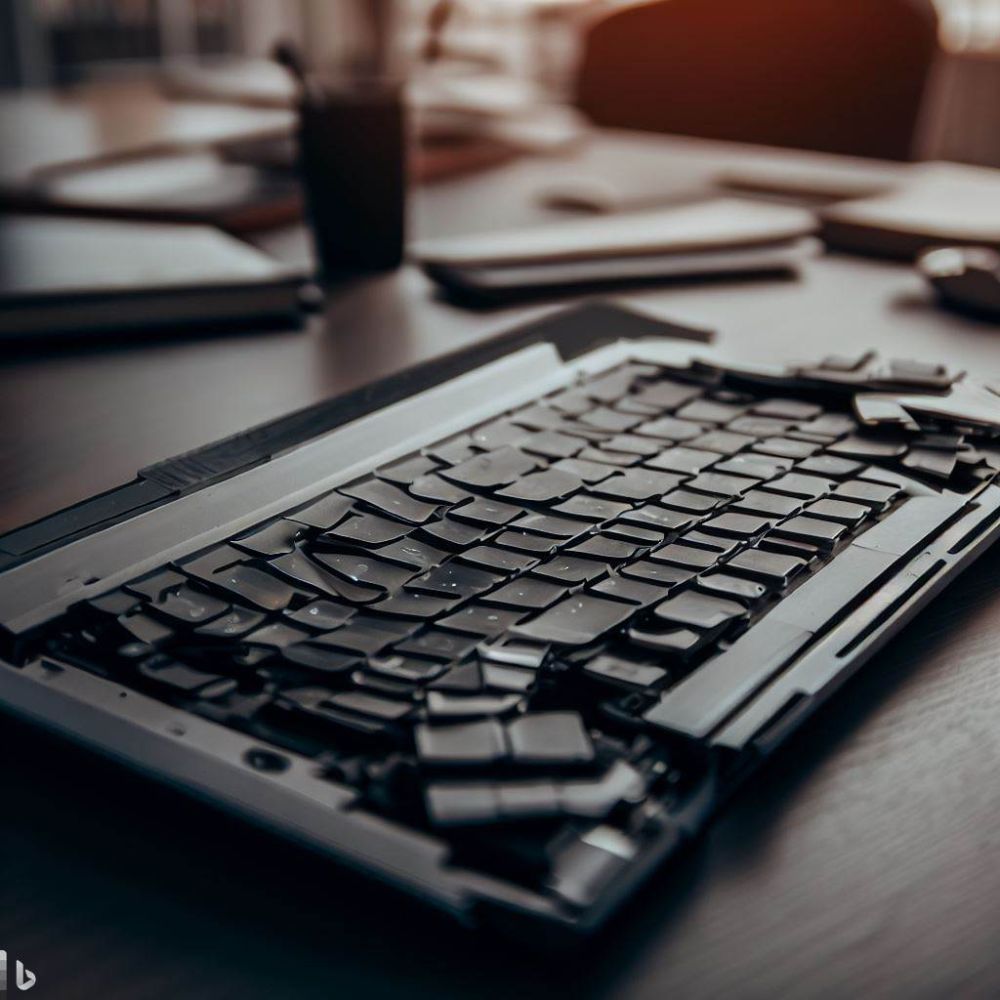
Laptop keyboards are susceptible to many different types of failures, such as dirt accumulation, mechanical damage, and incompatibility. While some of these issues can be fixed, sometimes the only solution is to replace the entire keyboard.
Here are some common causes:
Dirt: If dirt or dust has accumulated on the keyboard, it can prevent the keys from moving and functioning properly.
Accidental damage: If the laptop has been dropped or subjected to a strong impact, it can damage the keyboard.
Driver problems: The computer drivers are responsible for the keyboard's operation, so if the drivers are damaged or outdated, they can cause problems.
Viruses or malware: Computer viruses or malware can cause many different problems, including keyboard failure.
Incompatibility: Sometimes the keyboard does not work because it is not compatible with the computer or the software you are using.
Moisture damage: If moisture gets into the computer or its keyboard, it can cause damage and prevent the keys from functioning.
Low battery: If the laptop's battery is too low, it can affect the keyboard's operation or even prevent it altogether.
Faulty key: If a single key is faulty, it can prevent it from working and affect other keys.
Poor connection: If the keyboard connections are loose or damaged, it can affect its operation.
System error states: Some computer system error states can cause keyboard malfunctions.
If you have any questions or concerns about replacing the keyboard on your laptop, feel free to contact us and we'll be happy to help!
]]>
- Make sure the computer is turned off and disconnect all cables.
- Locate the hard drive release point on the bottom of the laptop. This may be either a separate cover or it may be located behind a protective plate on the bottom of the laptop.
- Remove the hard drive mounting screws and connection cable.
- Carefully remove the old hard drive and place the new hard drive in its place.
- Attach the new hard drive to the laptop with screws and reconnect the cable.
- Close the hard drive release point and replace all cables.
- Restart the computer and make sure the new hard drive is functioning properly.
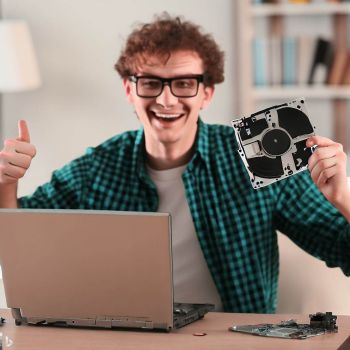
It's important to remember that all laptops are different, so always check your laptop's user manual before replacing the hard drive. Also, make sure the new hard drive is compatible with your laptop before installing it.
Please contact us if you need help with replacing your laptop's hard drive!
]]>We do not keep laptop batteries in stock. This is intentional: laptop batteries are highly model-specific, and ordering the wrong one is a common and expensive mistake. Instead, we first verify the correct battery and availability based on your laptop’s exact model.
Common laptop battery problems
We see these issues weekly:
- Battery lasts only a few minutes
- Laptop works only when plugged in
- Sudden shutdowns at 20–40%
- Battery not detected or not charging
- Swollen battery or overheating
While these symptoms often point to a worn battery, the root cause is not always the battery itself.
Why laptop battery replacement is not always simple
Many modern laptops use:
- Glued-in or sealed internal batteries
- Model-specific connectors and firmware restrictions
- Charging and power-management systems that can fail independently
Installing an incorrect or low-quality battery can cause charging issues, system instability, or even physical damage. That’s why we always check compatibility first.
How our laptop battery service works
- You email us your laptop brand and exact model and describe the battery issue
- We check the correct battery type, price, and availability
- You get a clear answer before any work is done
No automatic bookings. No guessing.
A technician reviews your case and replies personally.
Send your laptop details – we’ll check the battery
Email us your laptop model information, and we’ll tell you:
- Whether the battery can be replaced safely
- The expected cost
- Estimated turnaround time
Location: Punavuori, Helsinki
Phone support available if you prefer to discuss the issue directly.
Honest advice, even when replacement isn’t worth it
If battery replacement doesn’t make sense due to cost, age, or technical limitations, we’ll tell you honestly. We can also help with:
- Charging and power diagnostics
- Data transfer from older laptops
- Refurbished replacement machines
Our goal is to solve the real problem — not to sell unnecessary repairs.
]]>- Upgrade hardware, such as adding more RAM or upgrading the processor.
- Remove unnecessary files and programs to free up space on your hard drive.
- Update your computer's hardware drivers to the latest version.
- Restart your computer regularly.
- Install a reliable antivirus program and keep it up to date.
- Use less resource-intensive programs.
By following these tips, you can significantly speed up your computer and improve its performance. However, remember that the speed of your computer may also depend on how you use it and what kind of programs and files you use on it.
Welcome, and let's make your slow computer faster!
Troubleshoot Windows problems Installing software on a Windows computer Improve security in Windows]]>